


Choose a skin finish
Choose how much texture to keep, then check the finished portrait.
Before you start
- One clear portrait you have permission to edit and use.
- A source where the face and existing skin texture are easy to see.
Choose your portrait
Open Skin Enhancer and add one image from your device or private Library.
- Use the best available file, not a heavily compressed screenshot.
- Choose a portrait with enough visible detail to assess the result.
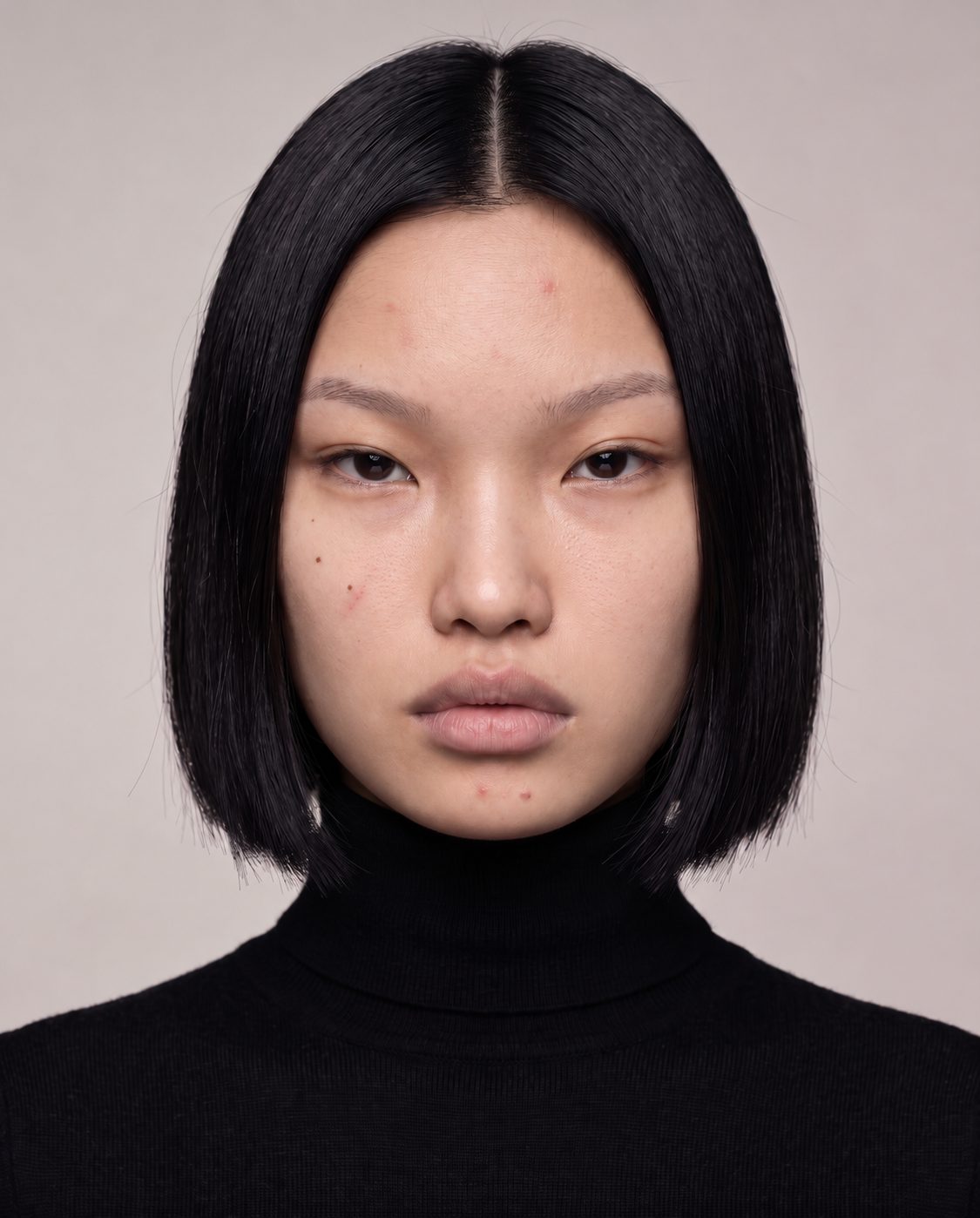 Imperfect skin
Example portrait with visible, unretouched skin texture. Choose a finish
Select one of the three finishes before Preview.
- Imperfect skin keeps a visibly unretouched texture.
- Realistic skin balances the finish while keeping natural detail.
- Soft skin aims for a smoother editorial finish.
Imperfect skin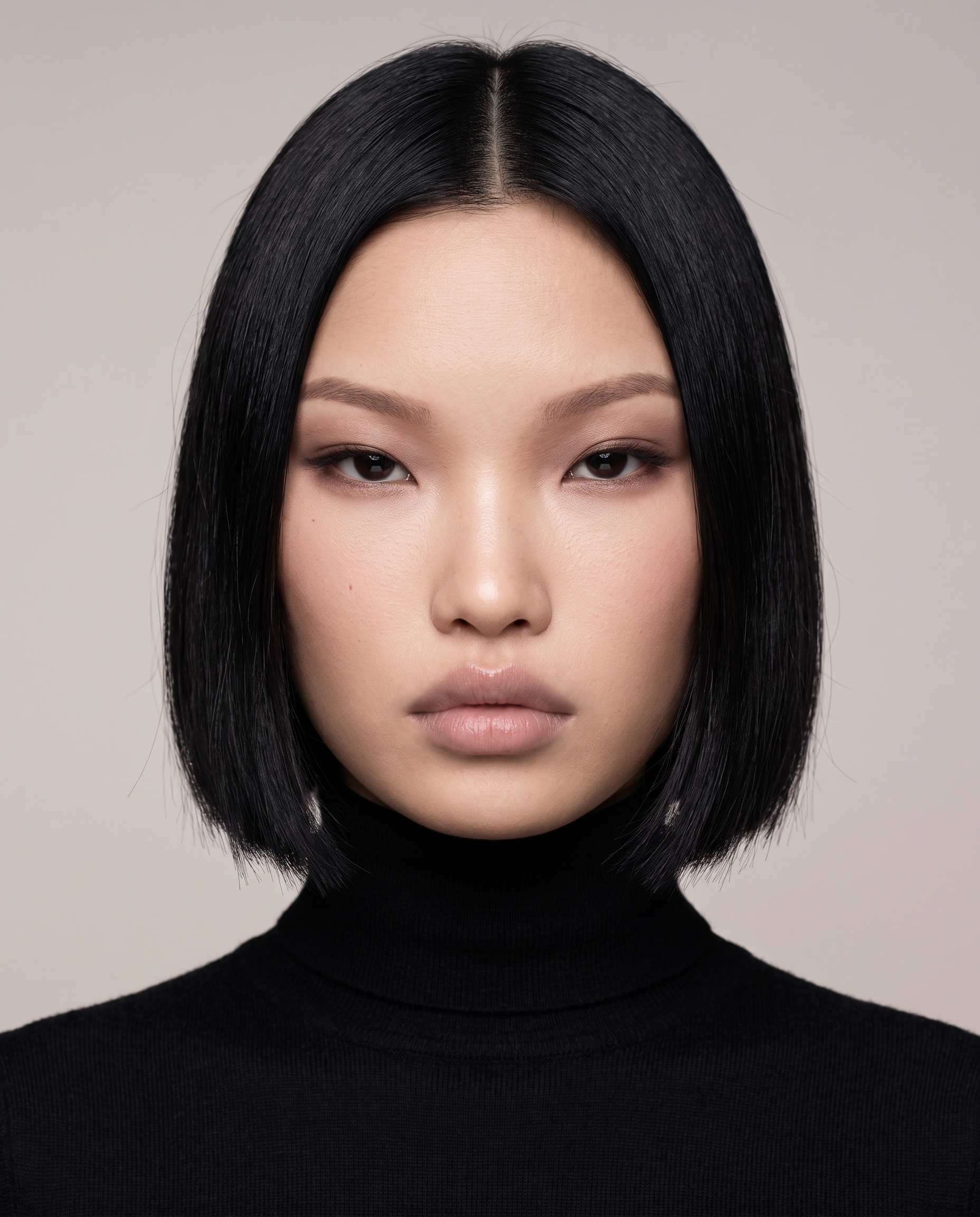 Soft skin
Illustrative Imperfect and Soft references. Realistic remains a setting, not a newly illustrated result. Review and compare
Confirm the Finish, Format, available Resolution and total credit cost in Preview before generating.
- Open the result in Library and compare the face, skin tone and texture with your source.
- Check that the portrait still suits the person and your intended use.
Imperfect skinSoft skinIllustrative Imperfect and Soft comparison. Generated variants are not guaranteed to align pixel for pixel. The finish is intended to preserve identity and natural features. Always inspect the returned image; this is not a guarantee for every result.