


Fashion brands
Prepare a launch, capsule or lookbook from your existing product photos.
Create fashion visuals from your clothing photos or an existing look. Style, direct and refine your next series.
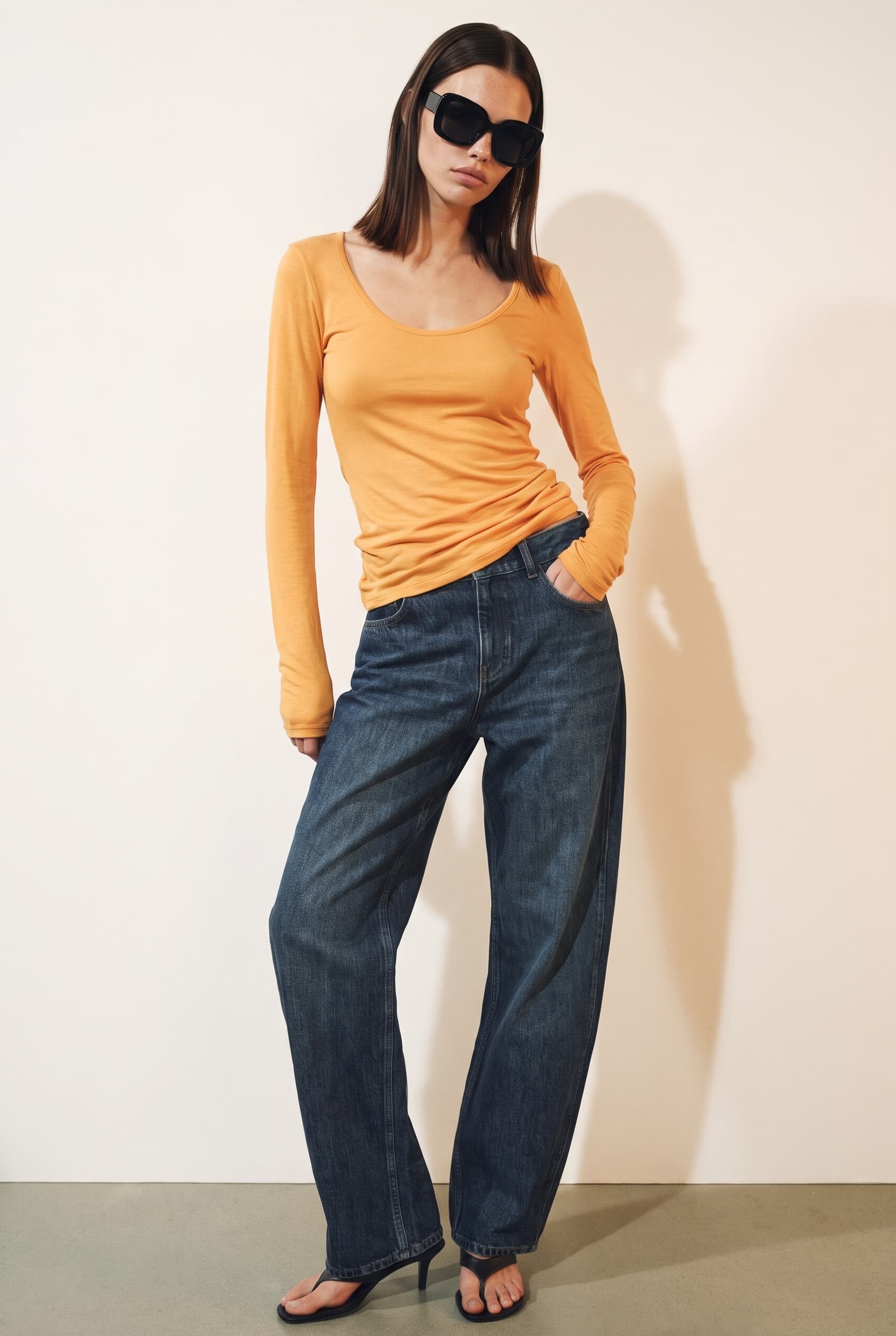
Try-On
Build the look. Add the finishing pieces.
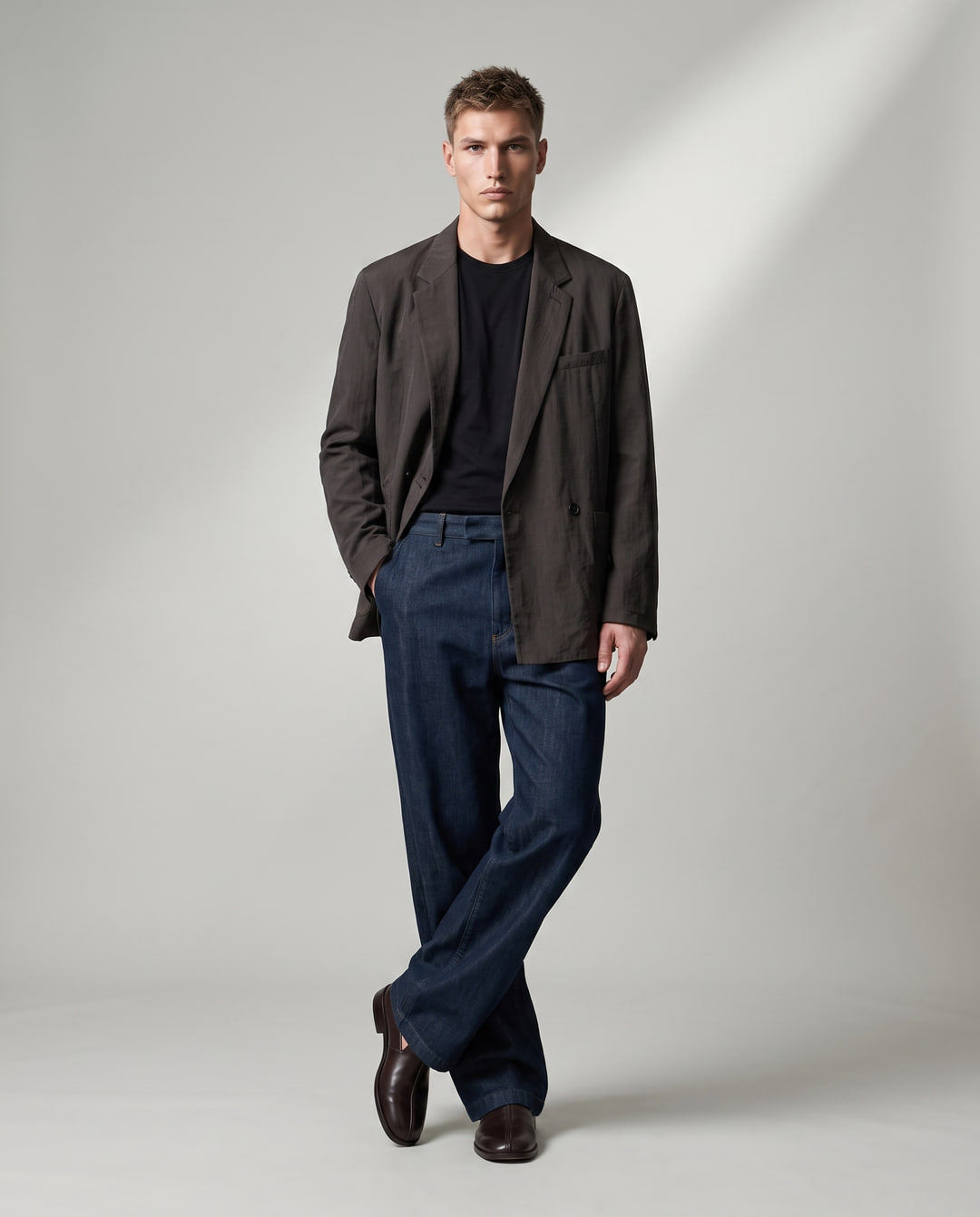
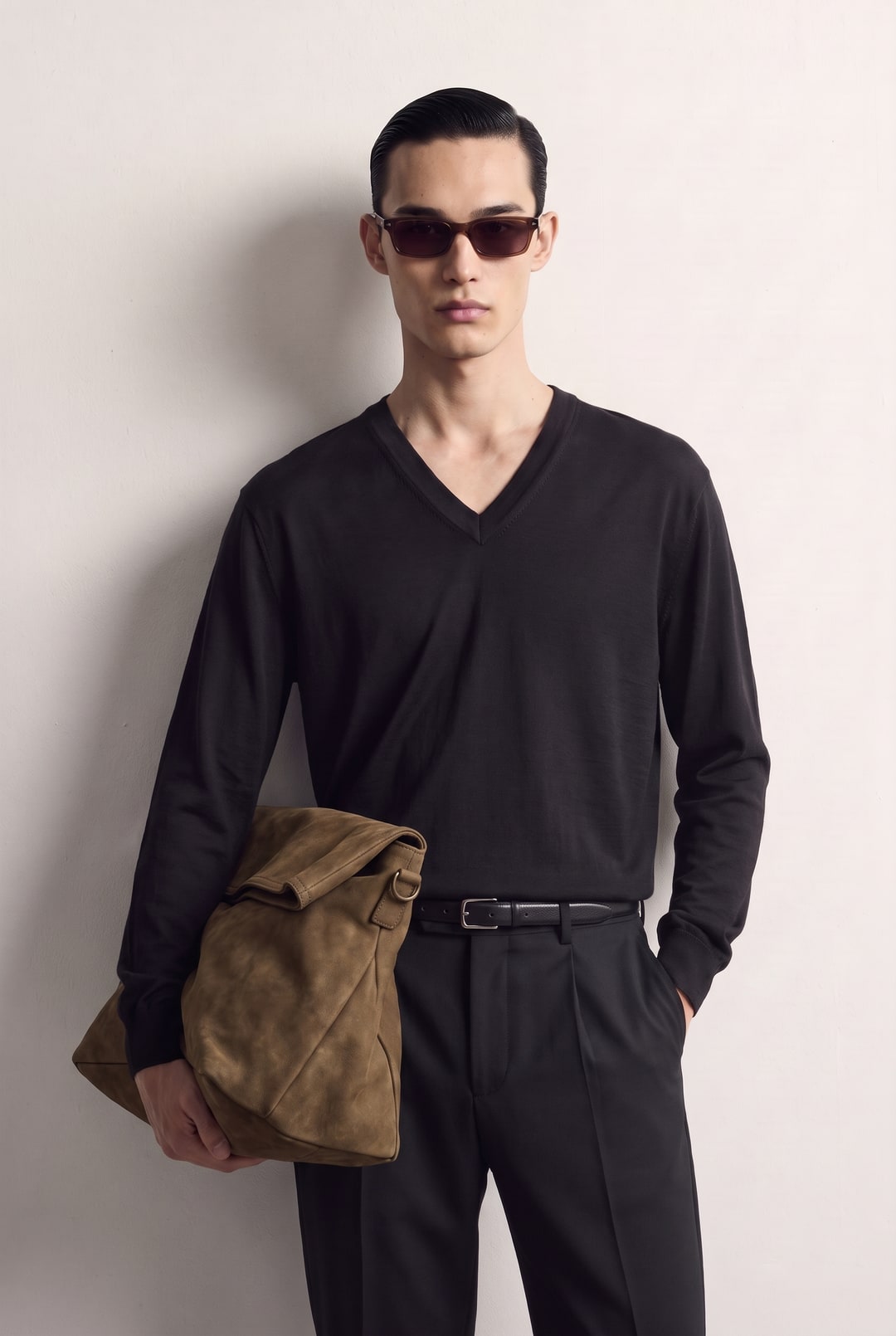
Fashion Try-On
Choose a model and add your clothing photos. Review the colours, silhouette and details in the generated look.
Clothing references
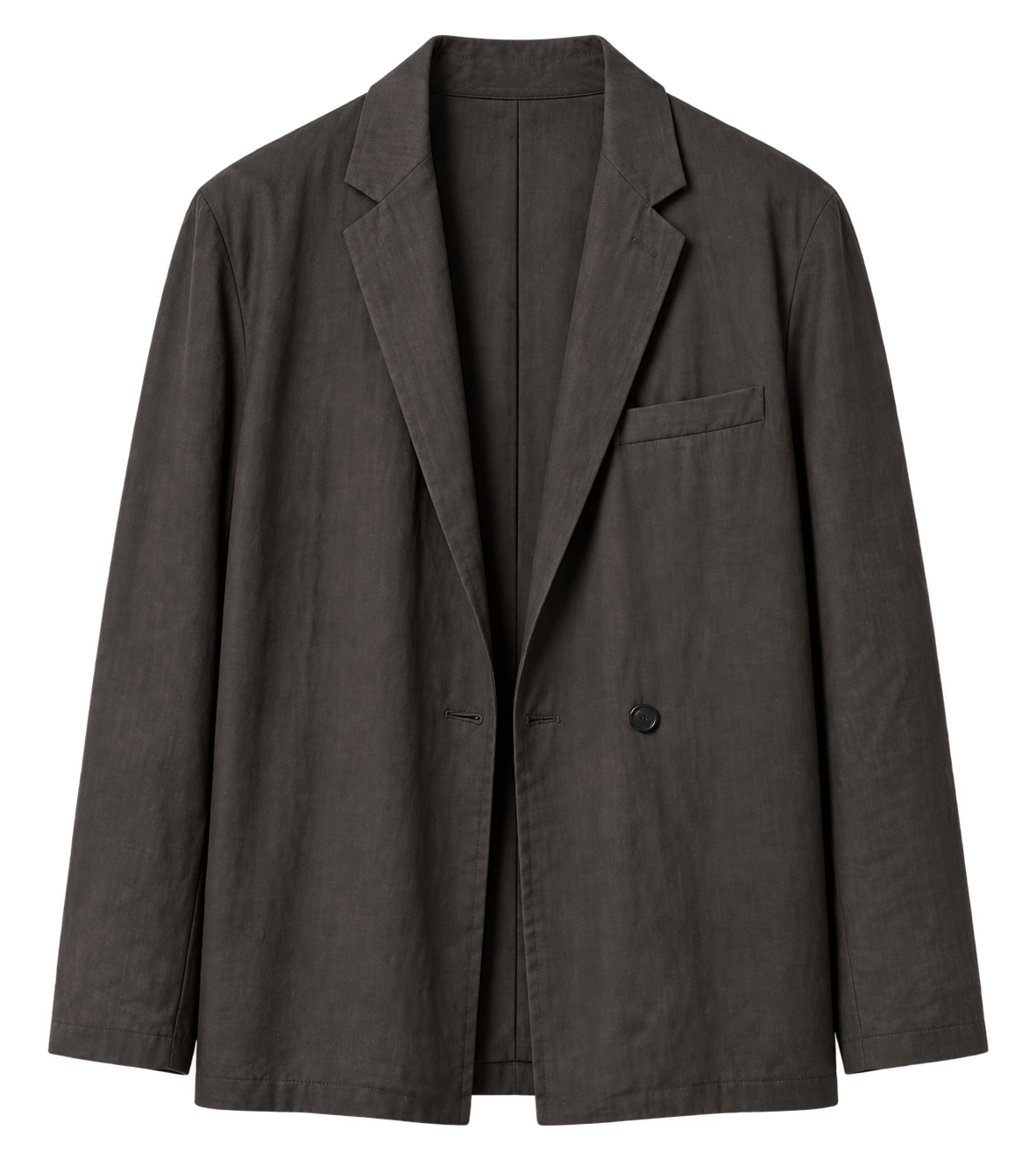
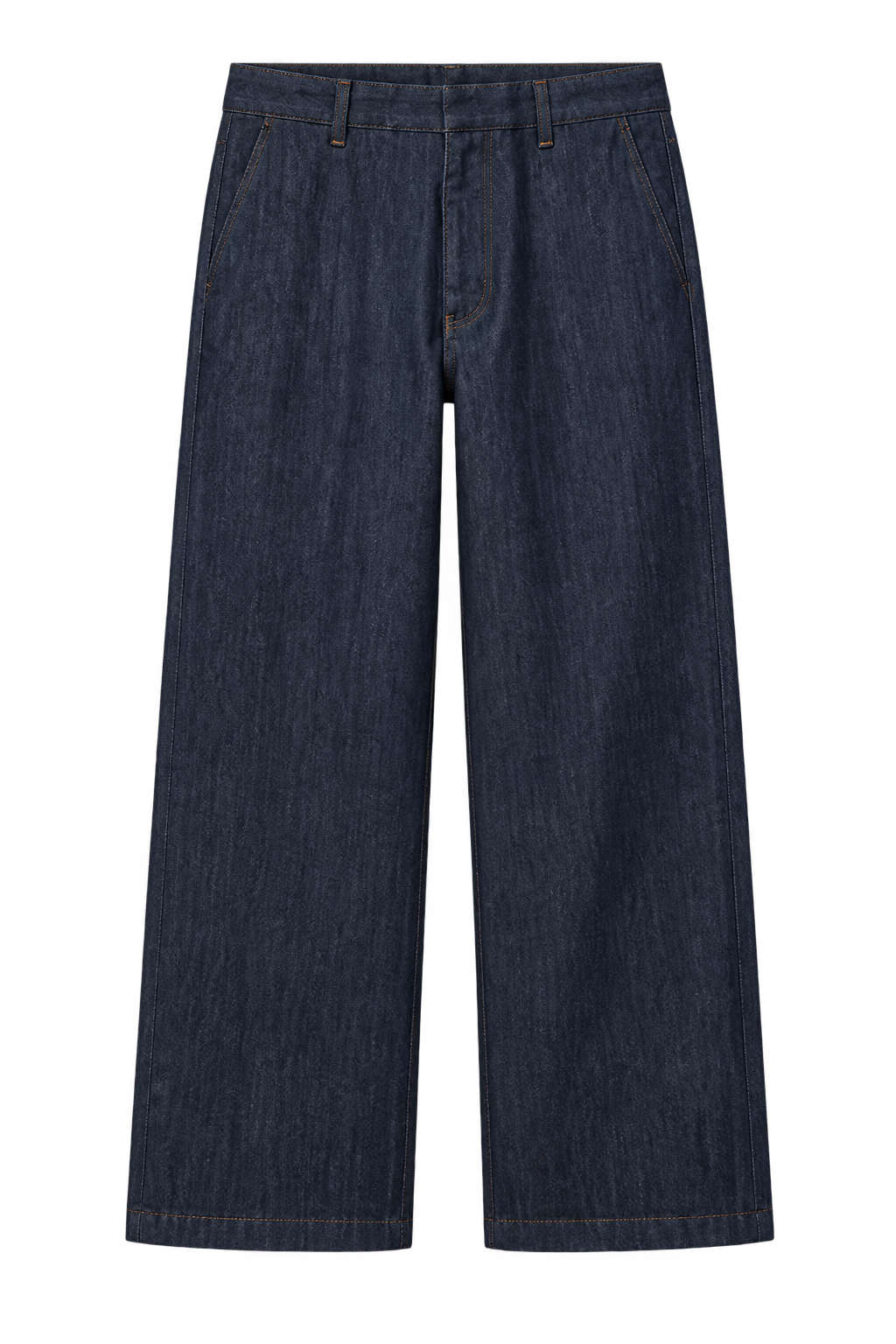
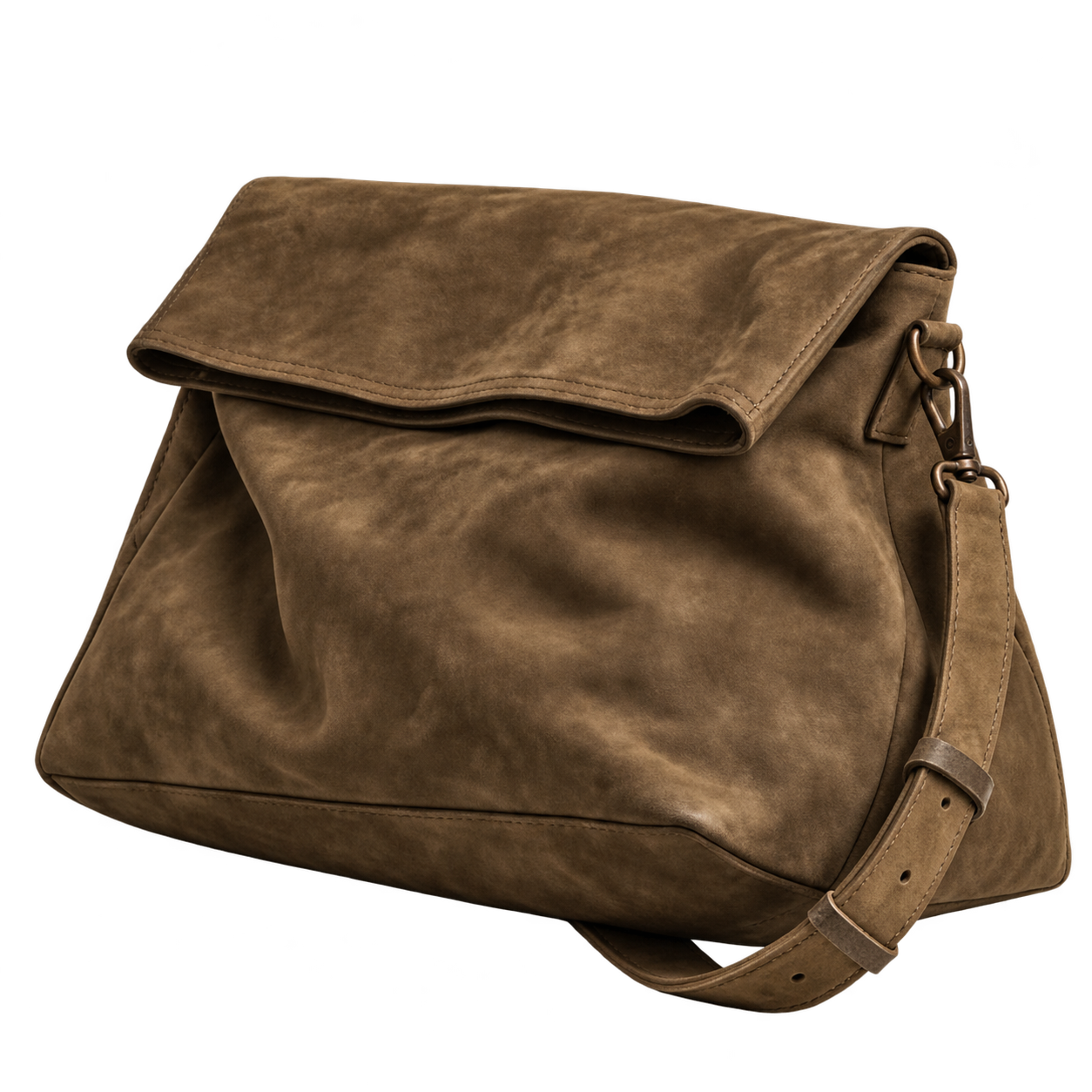
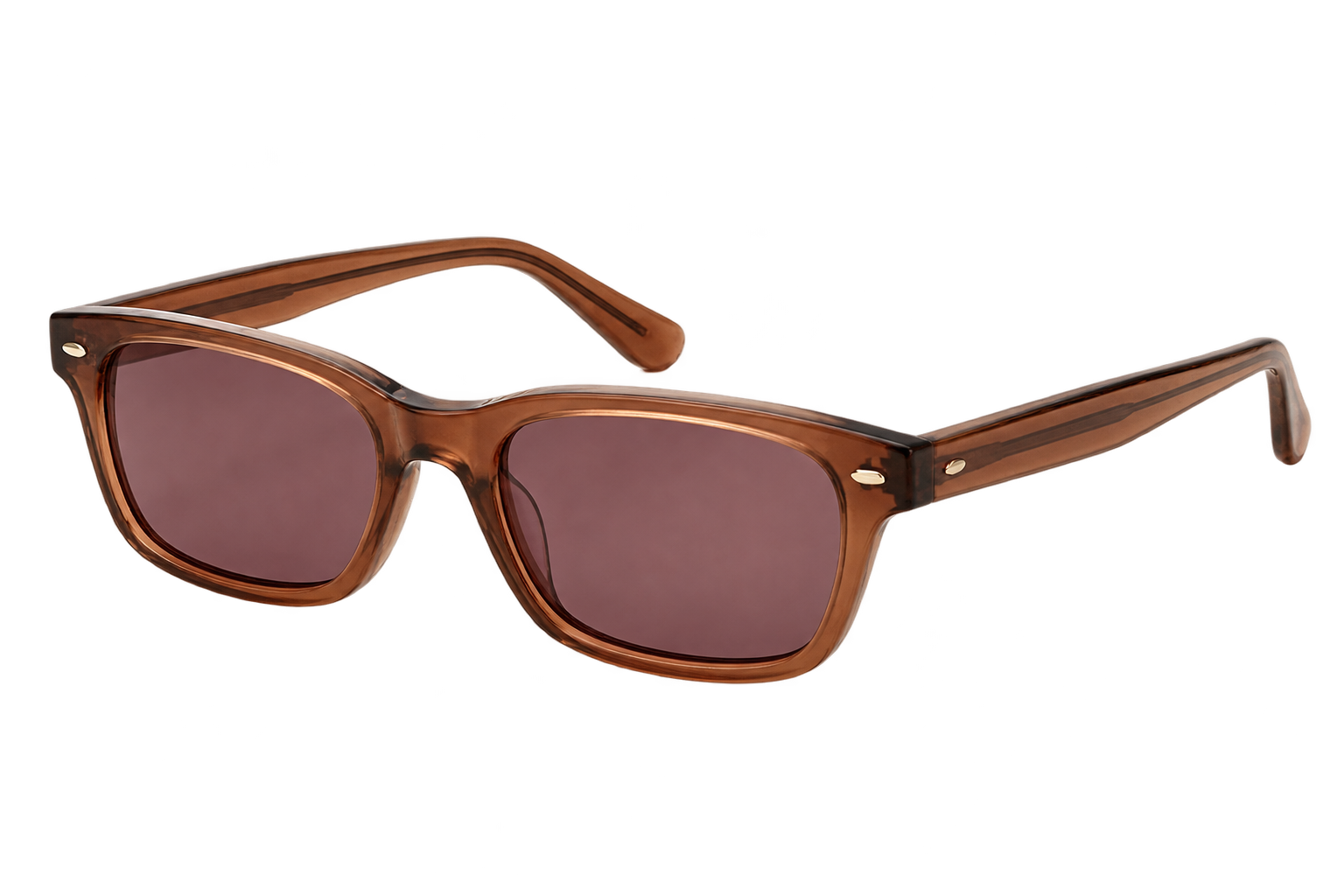
Accessories Try-On
Add bags, glasses, jewellery or other accessory photos to your model. Review each piece’s position, size and details.
Accessory references
THE PROCESS
ONE STUDIO · SIX TOOLS
Choose what you want to create. Bring your images, make your choices and review the results.
Explore the guides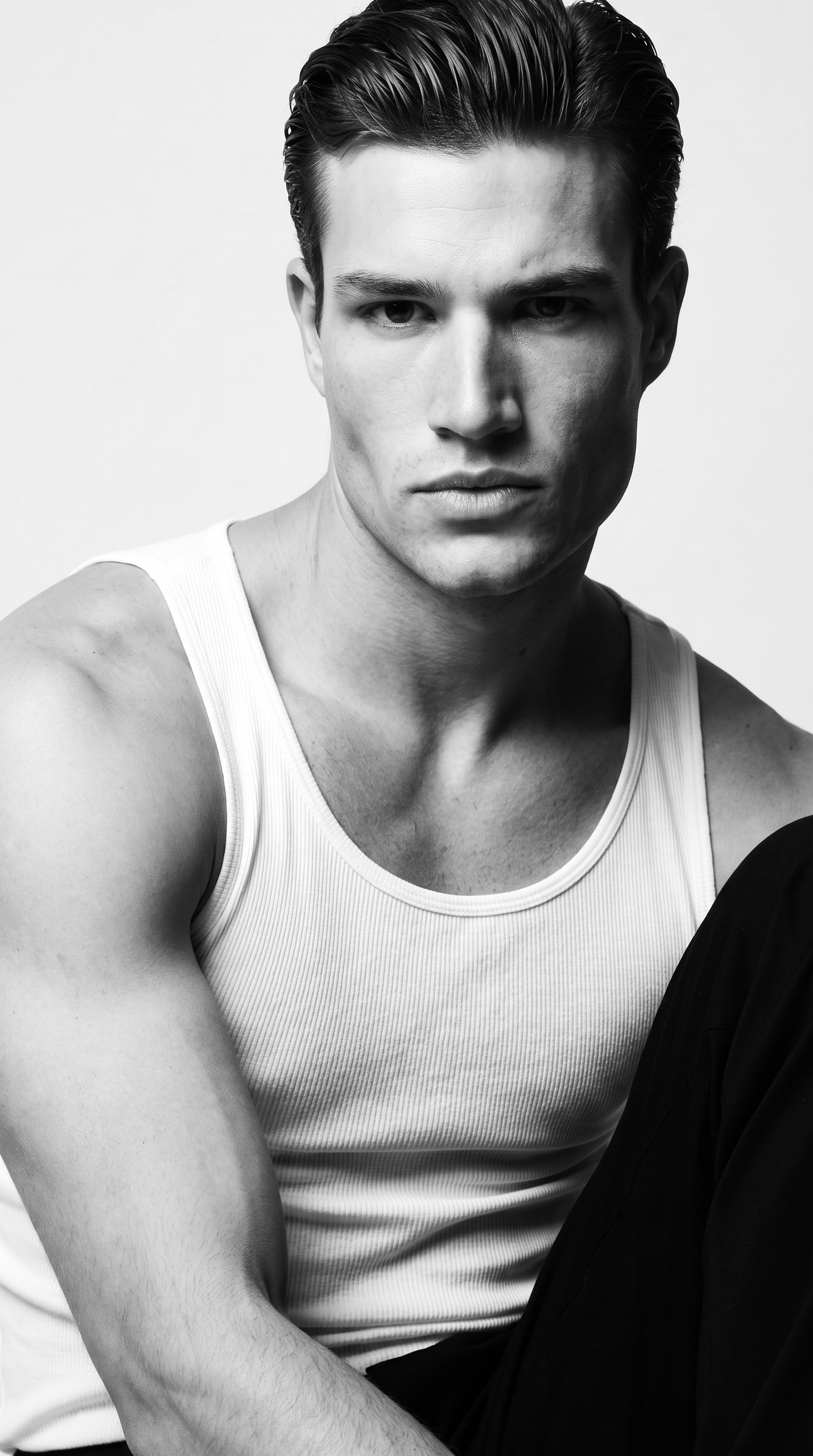
Build a look, create a series, explore new views or refine an image.
For Try-On, choose a model and add clothing or accessory photos. For series, angles or finishing, start with one existing image.
Choose the available settings and check the credit cost before generating. Then compare the results with your sources.
Visual Production
Start with one image, then choose a nine-shot story or new points of view.
Nine Shots
Start with one photo. Nocta directs the nine compositions, combining portraits, poses and details. Review the complete series before use.
Create nine shotsMulti-Angle
Start with one photo. Choose a starting set, then adjust the angles and framing for your shoot — up to 20 views.
Explore the angles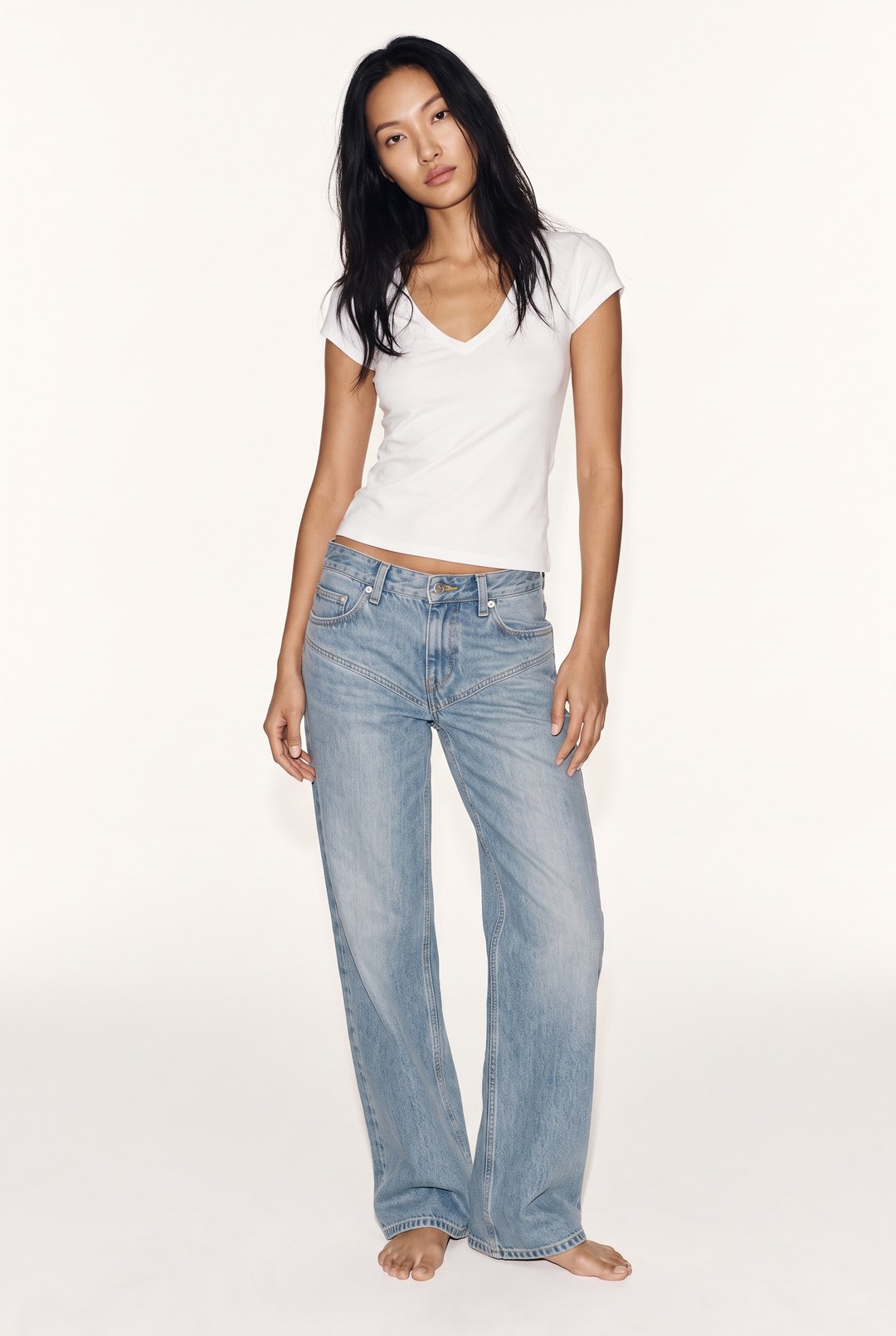
Model Direction
Use Fashion Try-On to explore the same clothing on another model. Compare the new interpretation with your clothing references, from the overall look to the finer details.
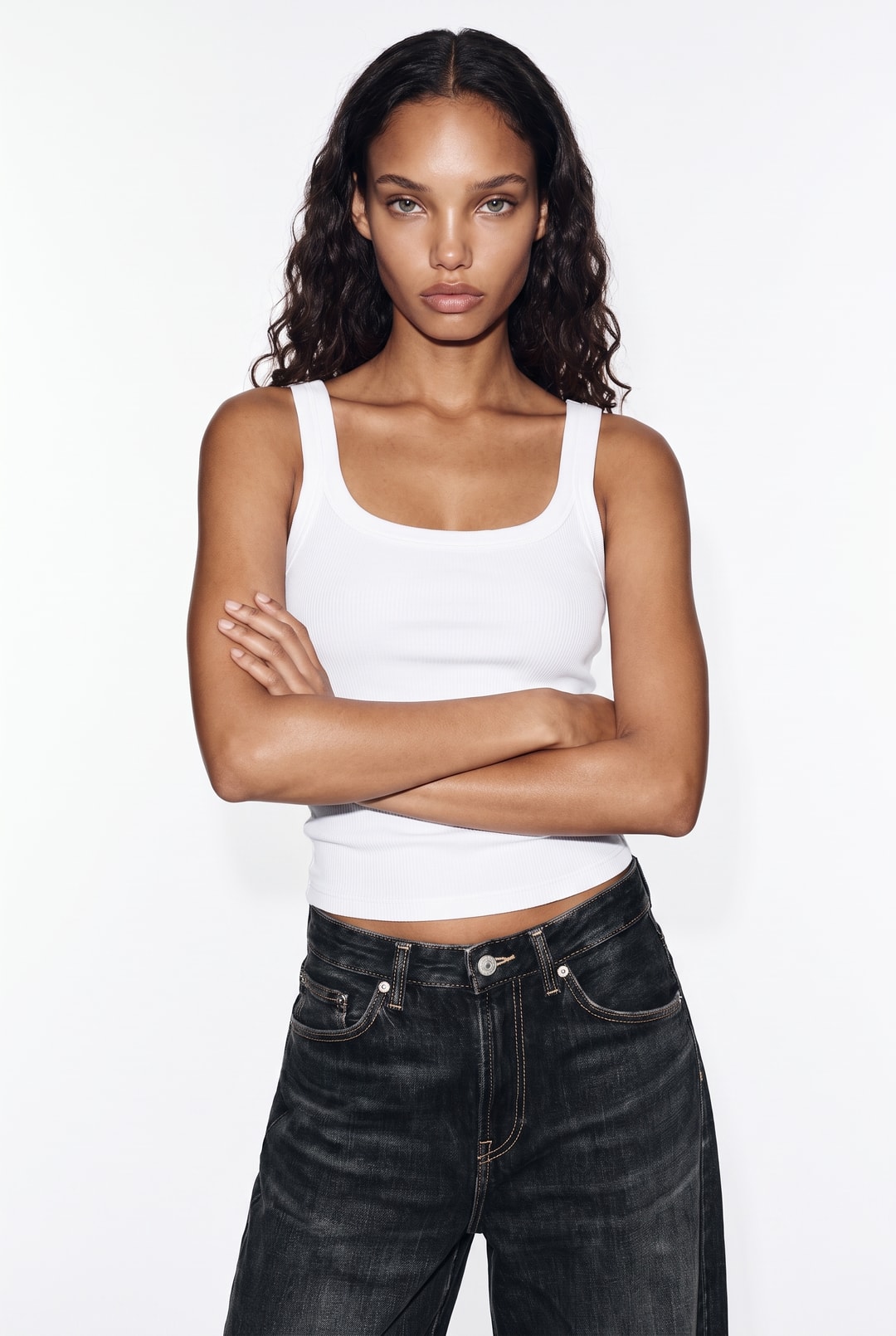
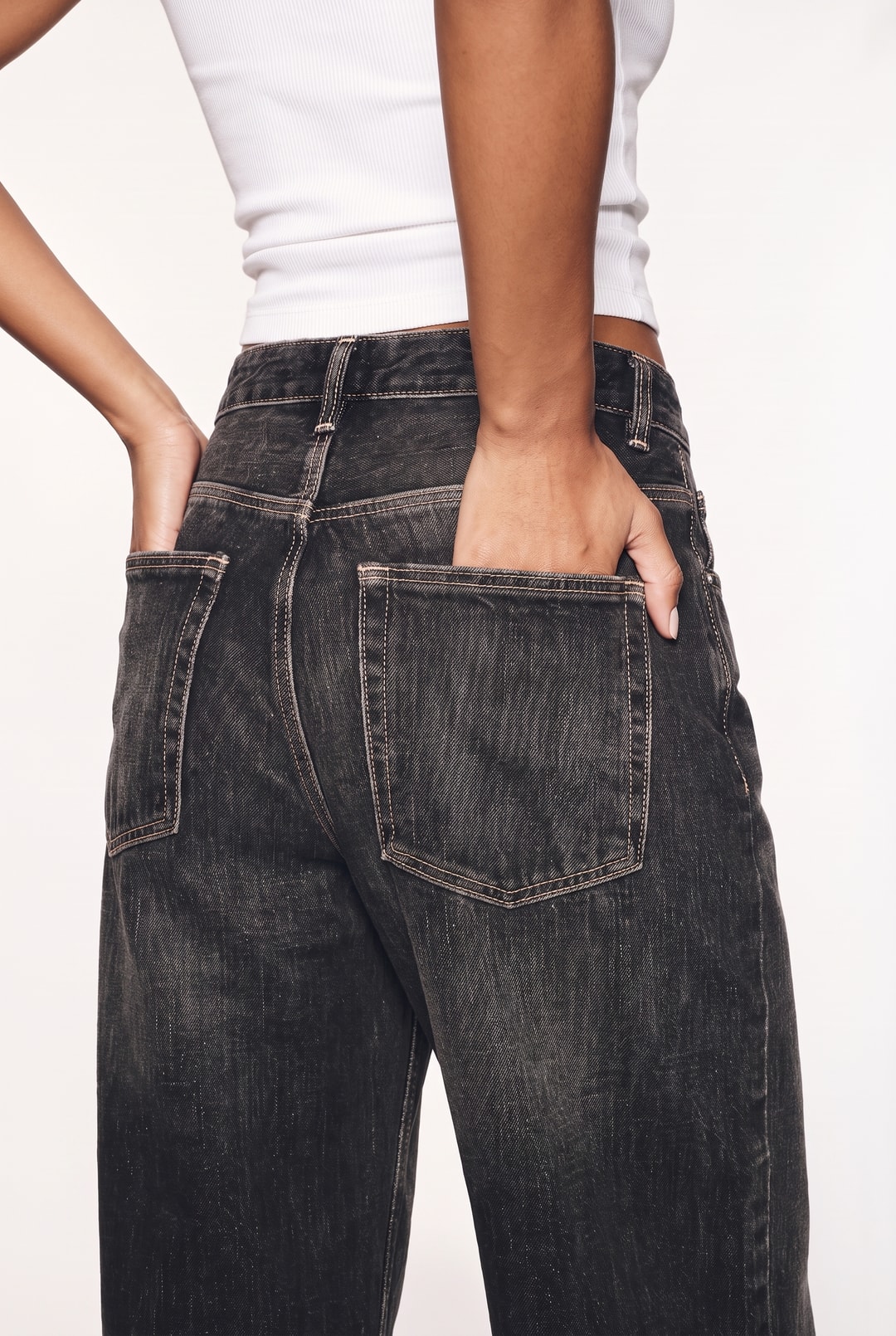
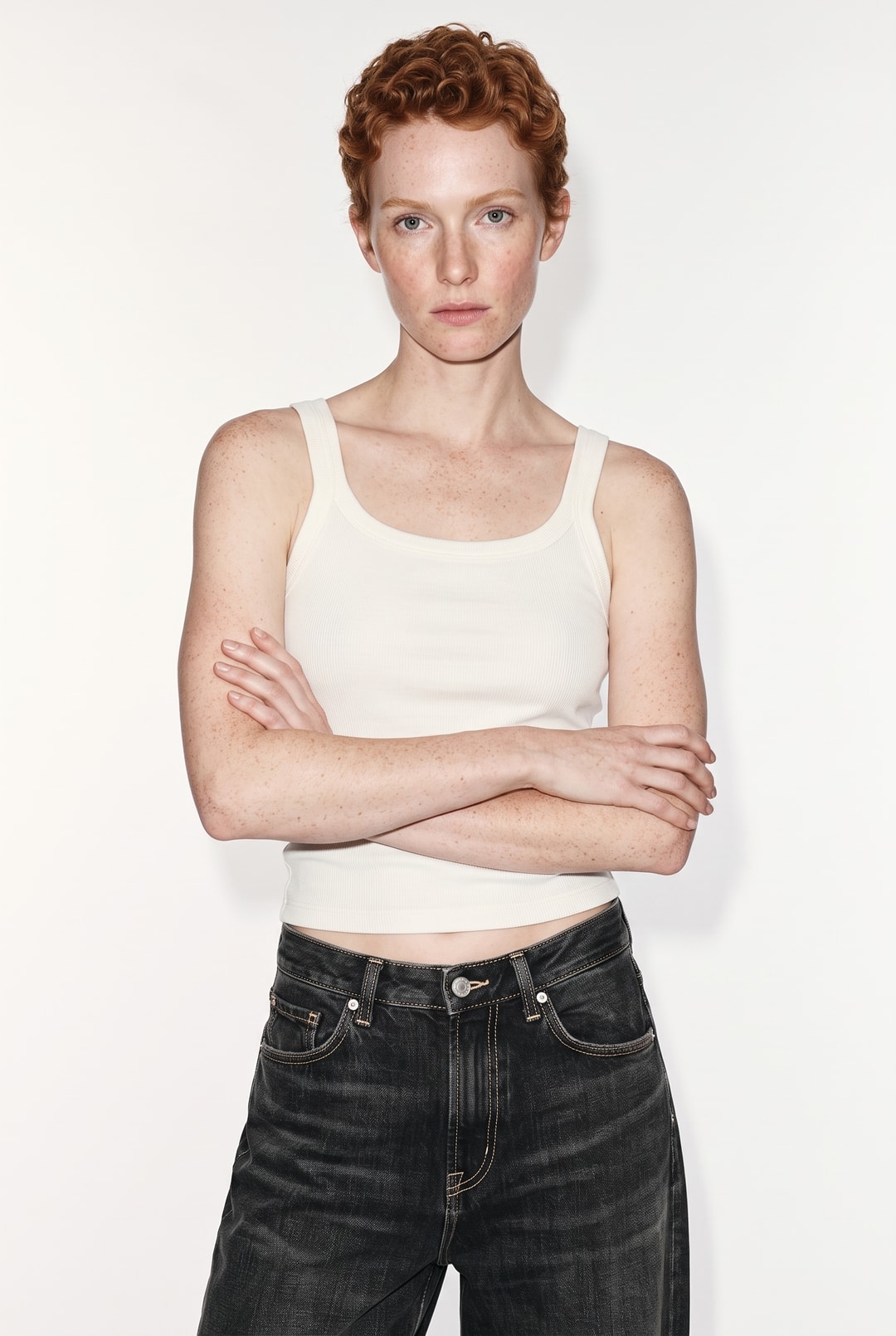
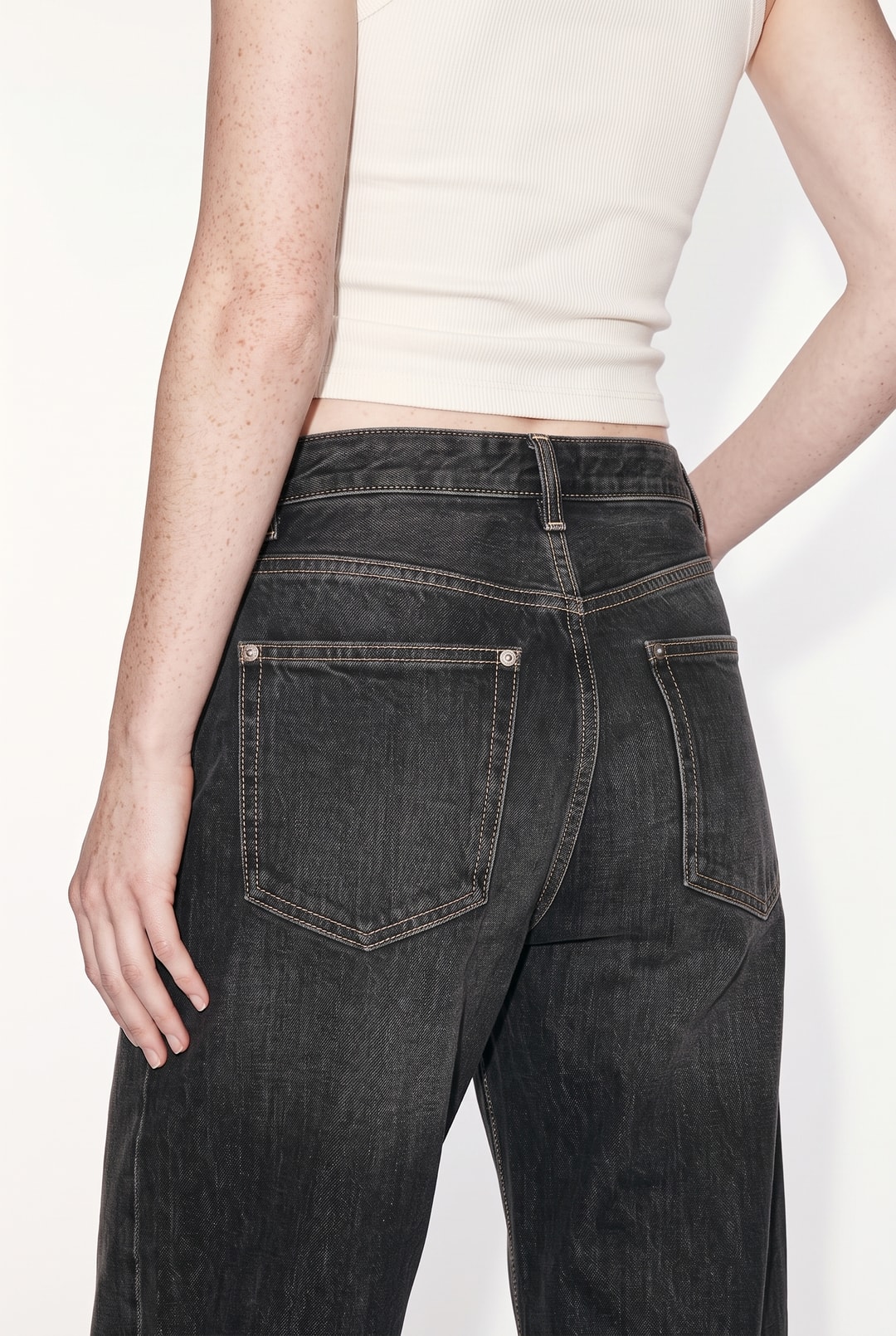
Image Finishing
Refine skin texture, or prepare 2K or 4K output where available.
Skin Enhancer
Choose Imperfect, Realistic or Soft for your portrait. Compare the skin texture, tone and visible details with your original image.
Enhance the skinThree skin finishes, each with its own character. Click a portrait to take a closer look.
Upscale
Choose the format and a 2K or 4K output available to your plan. Compare the result with your source and inspect fine details before use.
Upscale an imageChoose the next step for your image, from styling to the final details.
Scroll to explore all six tools.
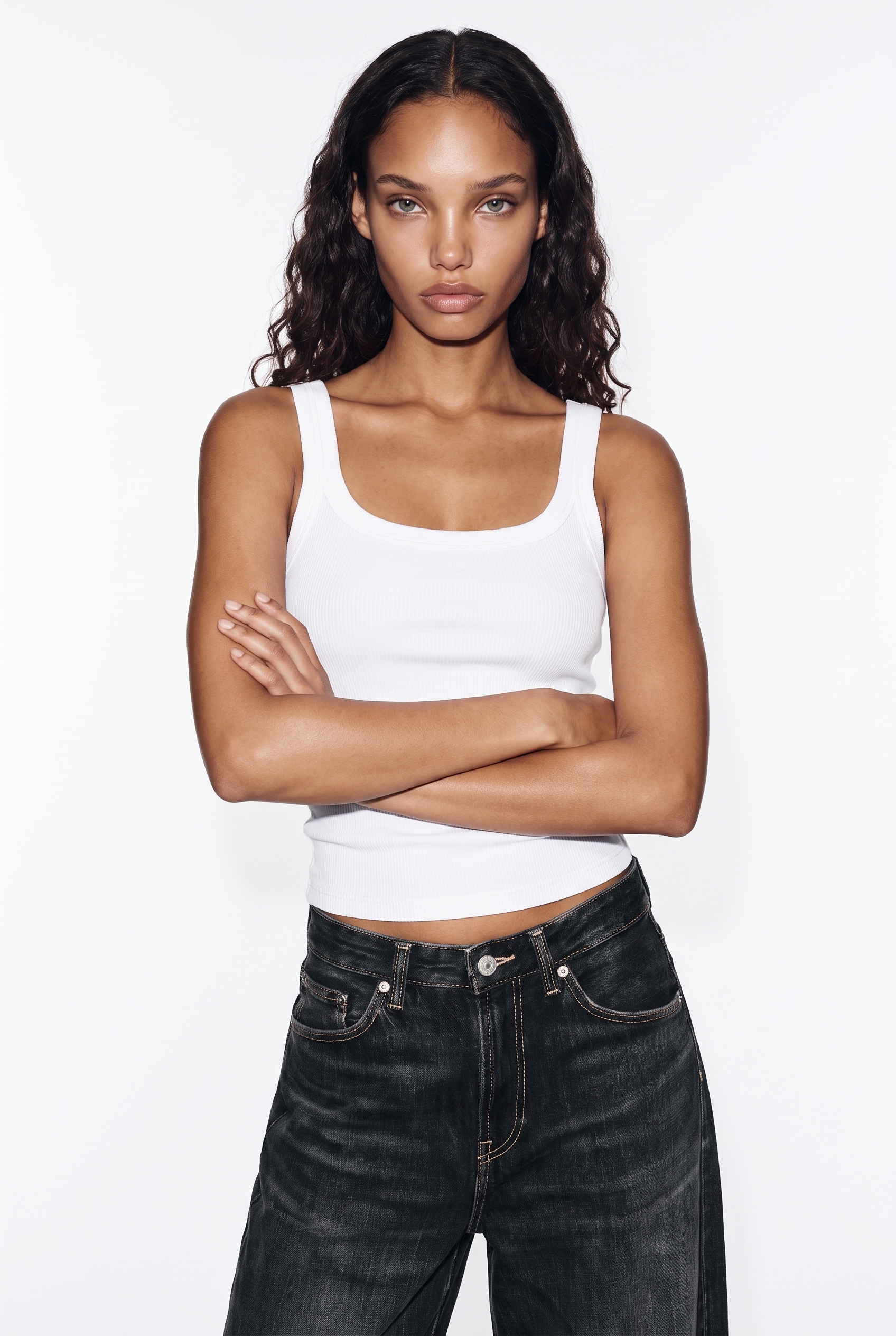 Fashion Try-OnChoose a model and add your clothing photos. Review the colours, silhouette and details in the result.Accessories Try-OnAdd bags, glasses, jewellery and other accessory photos to your model. Review their position, size and details.
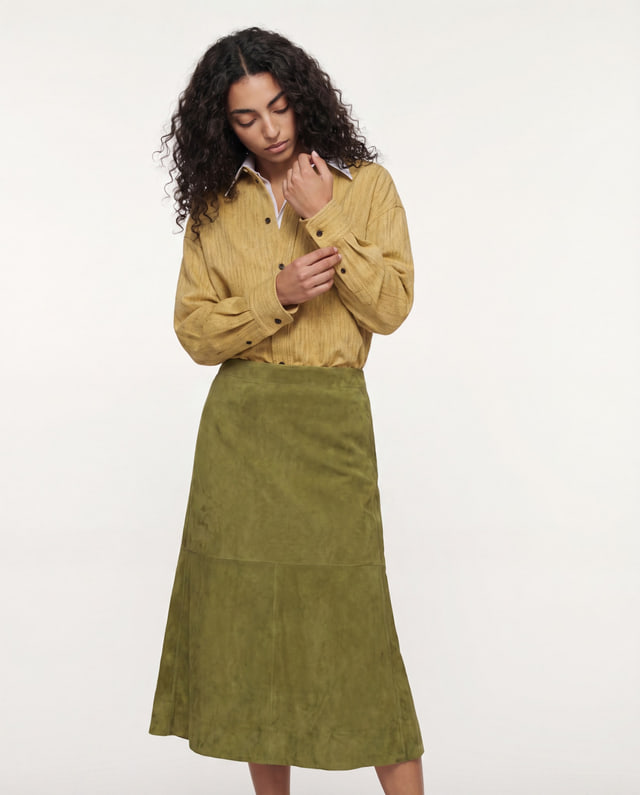 Nine ShotsStart with one photo. Nocta directs the nine compositions, combining portraits, poses and details.
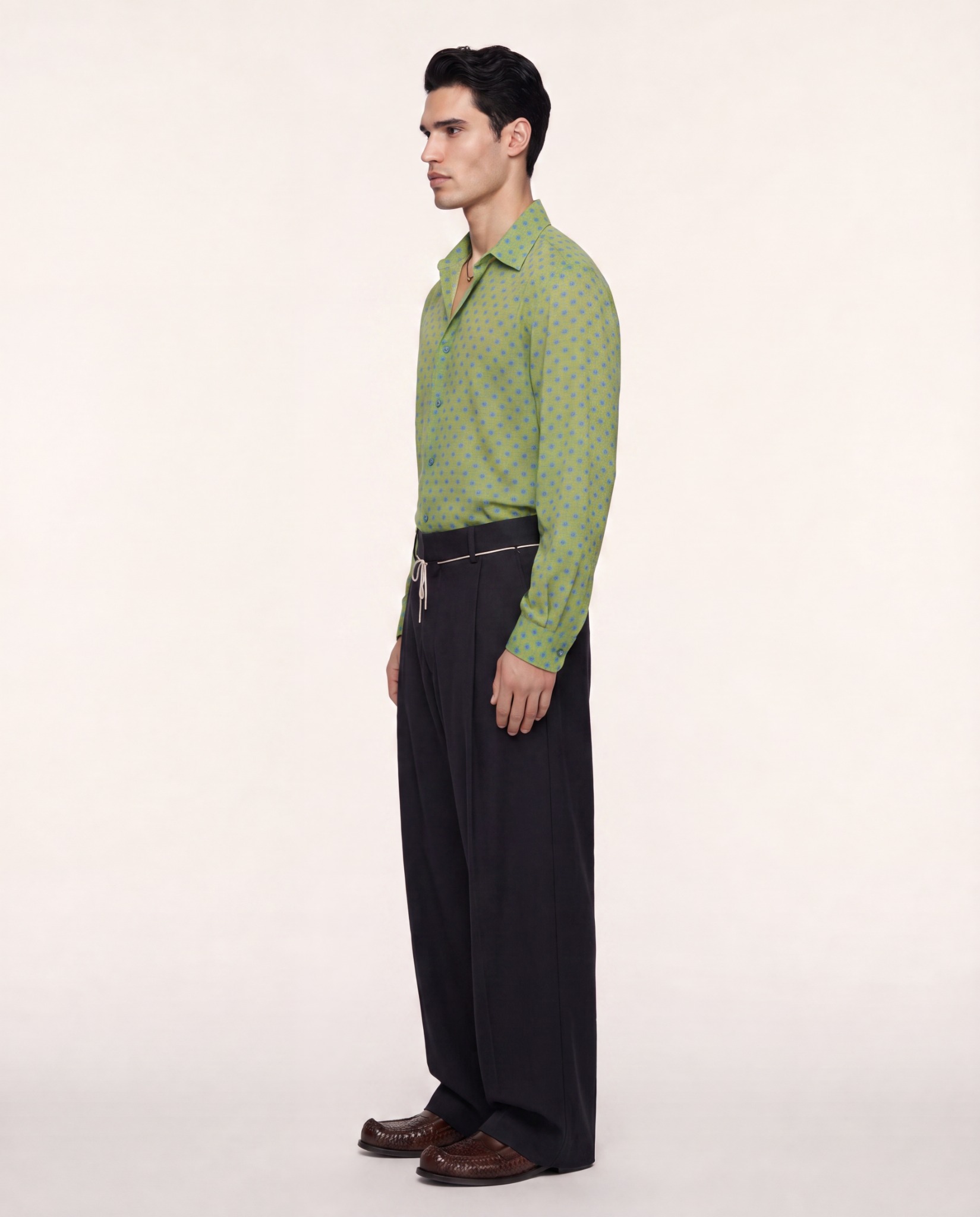 Multi-AngleStart with one photo. Choose a starting set, then adjust the angles and framing for your shoot — up to 20 views.
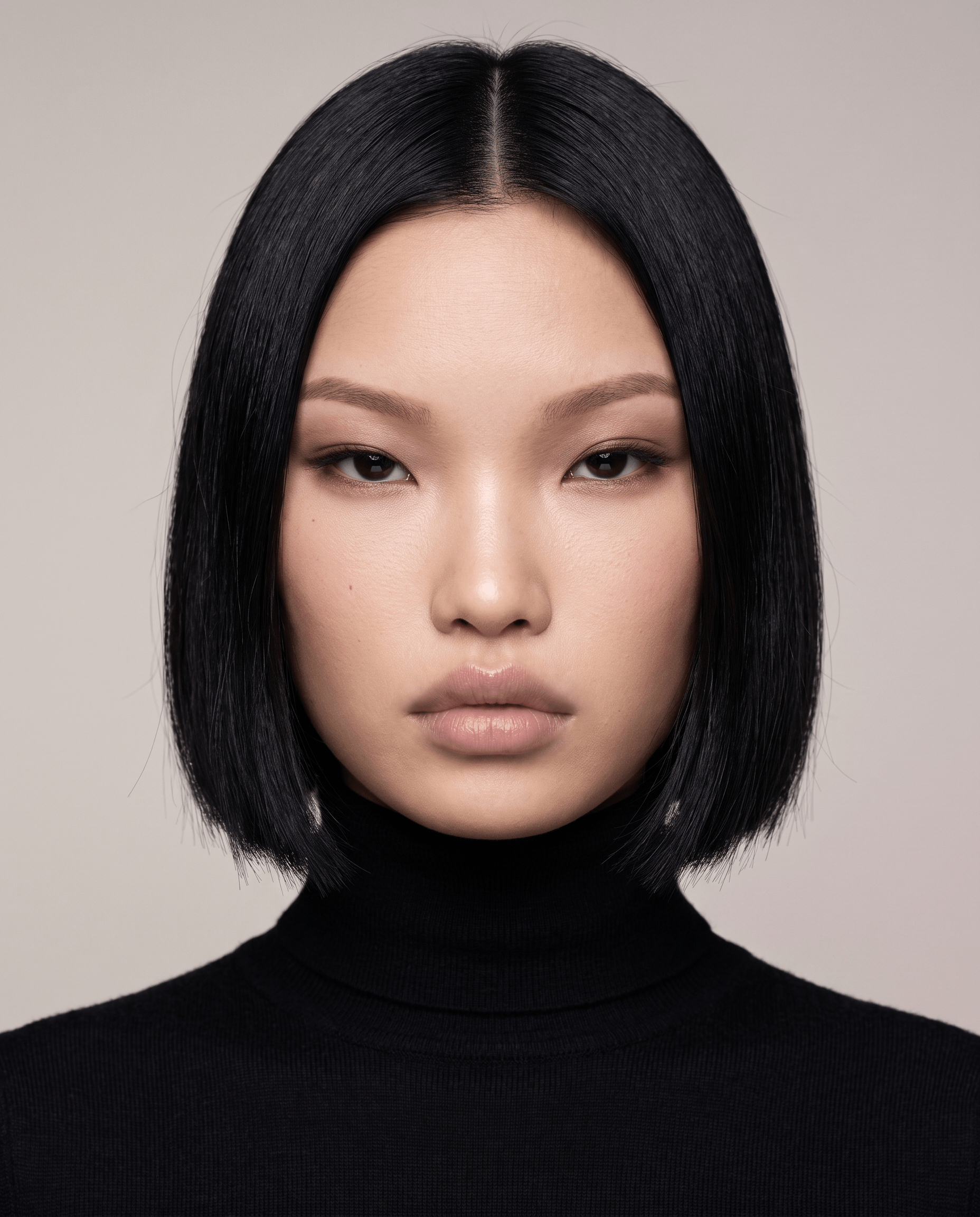 Skin EnhancerChoose Imperfect, Realistic or Soft, then compare the skin finish with your original portrait.
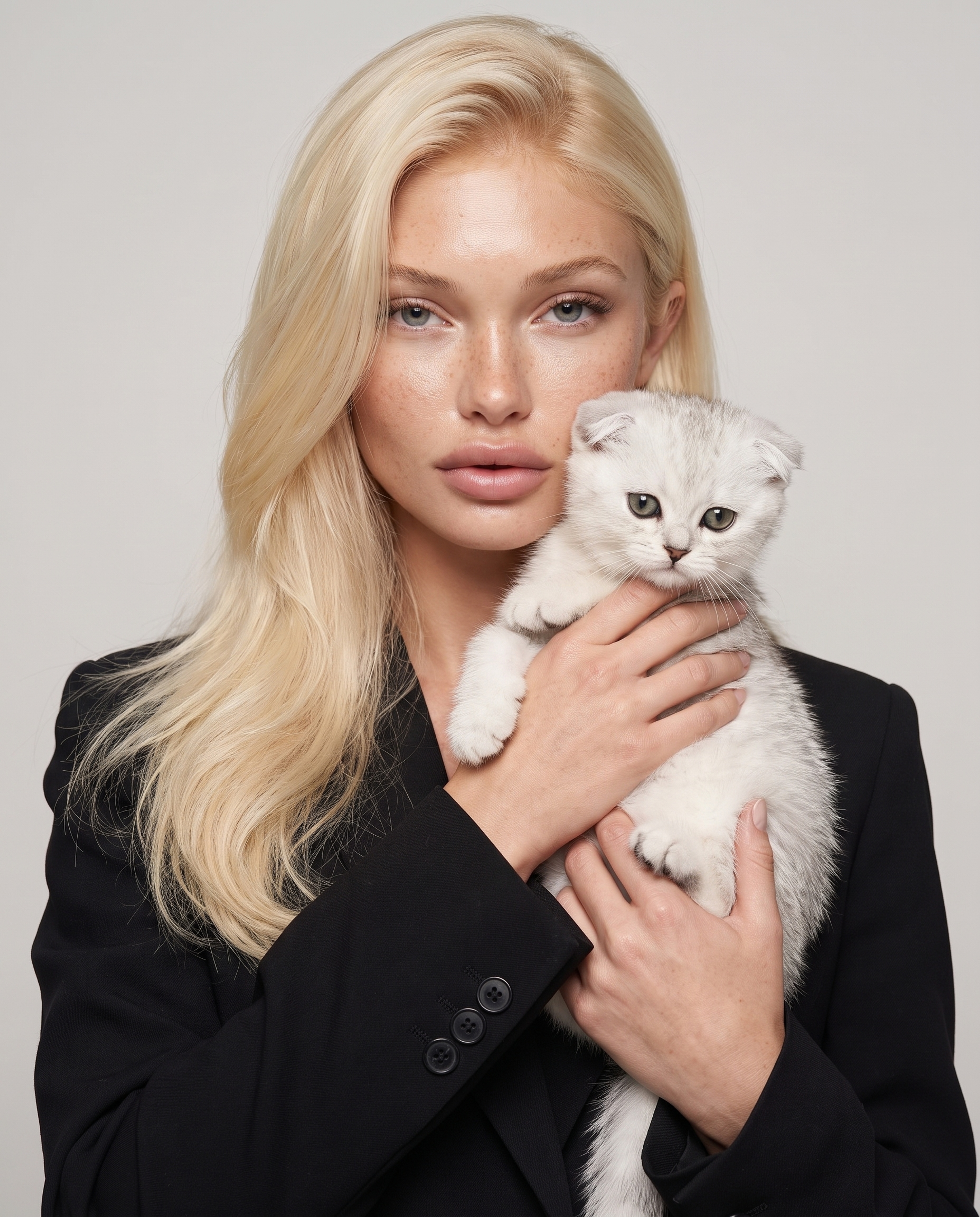 UpscaleChoose the format and a 2K or 4K output available to your plan, then compare the result with your source. Simulation visuelle : aperçu agrandi depuis une source 2K, pas un résultat du backend.
Photography captures your actual products. Nocta helps you explore new images from those sources, with choices and costs to review before generation. The two approaches can complement each other.
Scroll across to compare both workflows.
| Feature | Traditional productionPhotoshoots | New production modelNocta.ai Studio |
|---|---|---|
| Production cost | Traditional photoshootsProject-based budgetBudget for the photography, people, location and post-production your project needs. | Nocta.ai StudioCredit-based creationEach workflow shows its credit cost before you generate, when generation is available. |
| Time to market | Traditional photoshootsScheduled productionTiming depends on preparation, availability, shooting and post-production. | Nocta.ai StudioOn demandPrepare a new variation from existing photos. Processing time and any revisions depend on the request. |
| Model selection | Traditional photoshootsCast for the shootChoose people and agree on availability, usage permissions and your production brief. | Nocta.ai StudioYour model, your choiceUpload or reuse your own model, or choose from the Nocta model catalogue. |
| Creative control | Traditional photoshootsDirect on setControl real lighting, styling, pose and the product during the shoot. | Nocta.ai StudioChoose your directionChoose sources, visual direction, views, format and quality. Check the generated interpretation. |
| Scalability | Traditional photoshootsPlan the shot listPlan the products, poses and images to capture within your production resources. | Nocta.ai StudioExplore variationsCreate new variations from existing sources and keep the results you select in your Library. |
| Iterations | Traditional photoshootsRetouch or reshootA new pose, model or major adjustment may require another shoot. | Nocta.ai StudioBuilt for iterationRefine your direction and create new variations without rebuilding the entire production. |
| Brand consistency | Traditional photoshootsShared creative briefA brief, lighting references and art direction help align the images you photograph. | Nocta.ai StudioReusable referencesReuse sources and a visual direction, then compare identity, colour and details across the outputs. |
| Production workflow | Traditional photoshootsProduction coordinationCoordinate your sources, team, approvals and finished files. | Nocta.ai StudioOne connected studioCreate, review, save and organize your visuals inside Nocta and its Library. |
| Commercial usage | Traditional photoshootsPermissions to arrangeTalent, photography and licensing agreements may vary between productions. | Nocta.ai StudioRights-aware workflowDeclare your responsibility at the account level. You still need permissions for each source and intended use. |
These are workflow differences, not a measured saving or a quality comparison. Generated images can change product details and do not predict real size or fit. Review your sources and each result before publishing.
Prepare a launch, capsule or lookbook from your existing product photos.
Explore a complete look and review how your pieces are represented.
Prepare on-model variations, then check them against the actual product.
Editorial series from a single strong photo.
Extend a shoot with additional angles and enhancements.
Explore visual directions and select images for client review.
Your creations are private by default. Uploading a real person requires confirming you have the rights and their consent. An asset you remove goes to Trash and is erased for good 30 days later, or immediately if you choose. Retention rules for everything else are still being defined.